Integrating FortiGate Logs with Wazuh
2026-05-05 · Neetrox
Network security requires comprehensive visibility across all infrastructure components. FortiGate firewalls generate valuable security logs that, when properly integrated with Wazuh, provide enhanced threat detection and incident response capabilities. This integration transforms raw firewall logs into actionable security intelligence.
Understanding the Integration Components
Syslog Protocol Foundation
Syslog serves as the communication bridge between FortiGate devices and Wazuh. This standardized protocol enables centralized log collection from network devices, servers, and applications. For security operations, syslog provides reliable, real-time log transmission that forms the backbone of effective monitoring systems.
Wazuh Processing Components
Decoders parse incoming log data into structured fields, transforming raw FortiGate messages into formats that Wazuh can analyze. These components extract key information like source IPs, destination ports, and action types from firewall logs.
Rules apply conditions to decoded data, generating alerts based on predefined criteria. They assign severity levels and trigger specific responses based on log content and patterns.
FortiGate Configuration Process
Step 1: Accessing FortiGate Management Interface
Log into your FortiGate firewall through the web interface using administrator credentials. Ensure you have the necessary permissions to modify logging configurations.
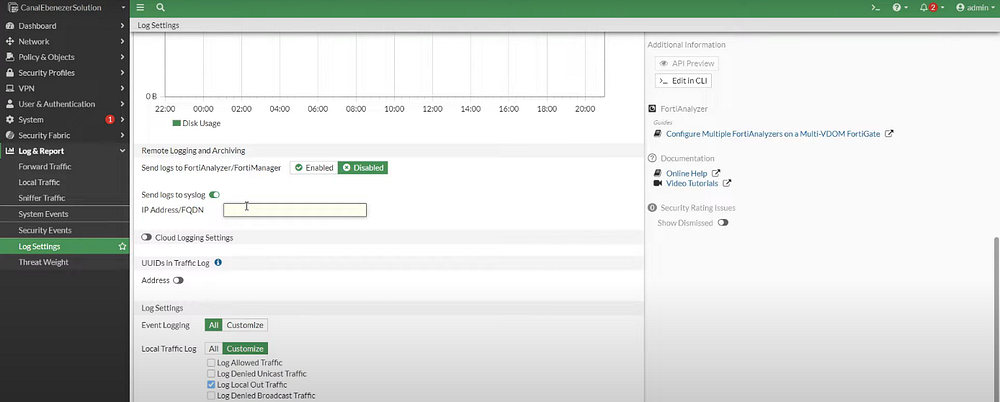
Step 2: Enabling Syslog Functionality
Navigate to Log & Report > Log Settings in the FortiGate interface. Under the Remote Logging and Archiving section, enable the Send Logs to Syslog option. This activates the syslog transmission capability.
Step 3: Configuring Syslog Server Details
Click Add in the Syslog Servers section and configure the following parameters:
- Name: Descriptive identifier for your Wazuh server
- IP Address: Your Wazuh server’s IP address
- Port: Syslog communication port (standard is 514)
- Facility: Select appropriate facility (Local0 or Local1 recommended)
- Format: Choose Default or CEF for enhanced compatibility
Step 4: Log Type Selection
Select the specific log types you want to forward to Wazuh. Common selections include:
- Traffic logs for network activity monitoring
- Event logs for system events
- Antivirus logs for malware detection
- Authentication logs for access monitoring
Save and apply all configuration changes to activate log forwarding.
Wazuh Configuration Setup
Step 5: Enabling Syslog Input Module
Edit the Wazuh manager configuration file located at /var/ossec/etc/ossec.conf or use the web interface through Server Management > Settings.
Add or modify the remote block to include syslog configuration:
<ossec_config>
  <remote>
    <connection>syslog</connection>
    <port>514</port>
    <protocol>udp</protocol>
    <allowed-ips>FORTIGATE-IP/24</allowed-ips>
  </remote>
</ossec_config>
Replace FORTIGATE-IP/24 with your FortiGate device's IP address and appropriate subnet mask.
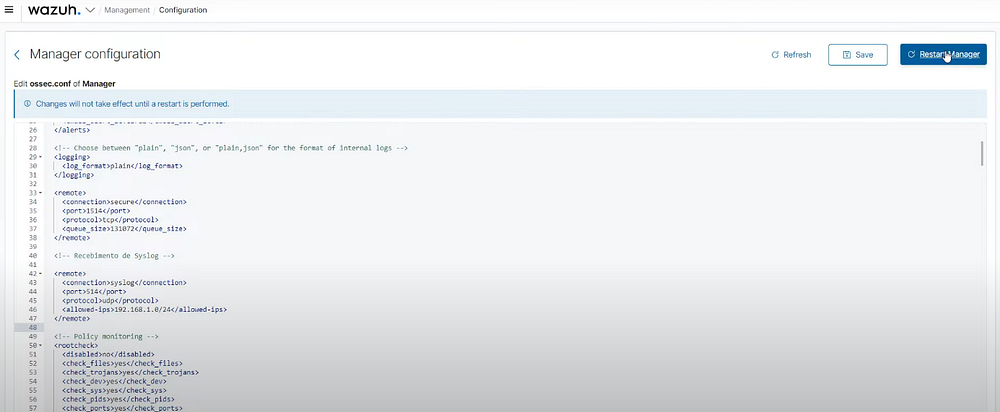
Step 6: Installing FortiGate Decoders and Rules
Download the FortiGate-specific decoders and rules from the Wazuh GitHub repository:
- Decoders:
fortigate_decoders.xmlfrom the official Wazuh ruleset - Rules:
fortigate_rules.xmlfrom the official Wazuh ruleset
Copy these files to the appropriate Wazuh directories:
sudo cp fortigate_decoders.xml /var/ossec/etc/decoders/
sudo cp fortigate_rules.xml /var/ossec/etc/rules/
Step 7: Applying Configuration Changes
Restart the Wazuh manager to apply all configuration changes:
sudo systemctl restart wazuh-managerMonitor the service status to ensure successful restart and proper operation.
Verification and Testing
Step 8: Validating Log Reception
Access the Wazuh dashboard and navigate to Explore > Discover. Verify that FortiGate logs are appearing in the interface. Look for logs with appropriate source identification and proper timestamp formatting.
Step 9: Confirming Log Parsing
Examine the received logs to ensure proper parsing and categorization. Verify that:
- Source and destination IP addresses are correctly extracted
- Port numbers and protocols are properly identified
- Action types (allow, deny, drop) are accurately parsed
- Security events trigger appropriate alerts
Integration Benefits
This integration provides several operational advantages:
Centralized Monitoring: All FortiGate security events flow into a single monitoring platform
Enhanced Detection: Wazuh rules can identify patterns and anomalies in firewall traffic
Automated Response: Configure automated responses to specific firewall events
Compliance Support: Centralized logging supports regulatory compliance requirements
Forensic Capabilities: Historical log data enables thorough incident investigation
Troubleshooting Common Issues
Network Connectivity Problems
Verify network connectivity between FortiGate and Wazuh servers. Check firewall rules and routing configurations that might block syslog traffic.
Log Parsing Issues
If logs appear but aren’t properly parsed, verify decoder configuration and ensure FortiGate log format matches expected decoder patterns.
Missing Logs
Check FortiGate log type selections and ensure all desired log categories are enabled for syslog forwarding.
Performance Considerations
Monitor system resources on both FortiGate and Wazuh servers. High-volume environments may require performance tuning or load balancing configurations.
Security Considerations
Network Security
Implement secure communication channels between FortiGate and Wazuh servers. Consider using encrypted syslog transmission in sensitive environments.
Access Control
Restrict syslog server access to authorized FortiGate devices only. Use IP-based filtering to prevent unauthorized log submission.
Log Retention
Establish appropriate log retention policies that balance storage requirements with compliance and investigation needs.
Advanced Configuration Options
Custom Rule Development
Create custom rules for specific security scenarios relevant to your environment. This includes rules for:
- Unusual traffic patterns
- Repeated authentication failures
- Suspicious port scanning activities
- Geographic anomalies in network traffic
Alert Customization
Configure alert thresholds and notification mechanisms based on your security operations requirements. Set up email notifications, webhook integrations, or SOAR platform connections.
Conclusion
Integrating FortiGate logs with Wazuh creates a comprehensive security monitoring solution that enhances threat detection capabilities. This integration transforms network firewall logs into actionable security intelligence, enabling faster incident response and improved overall security posture.
The configuration process, while requiring technical expertise, provides a solid foundation for enterprise-level security monitoring. Regular maintenance and monitoring ensure the integration continues to meet evolving security requirements and provides reliable protection against emerging threats.
Proper implementation of this integration significantly enhances your organization’s ability to detect, analyze, and respond to security incidents across your network infrastructure.